Preferences
PanelPilot exposes its full configuration directly inside the addon preferences. There are no extra menus or pies - every shortcut lives in one list.
Open it via Edit > Preferences > Add-ons > PanelPilot.
The default state
When you install PanelPilot for the first time, the list is populated with five factory-default shortcuts bound to the most common 3D Viewport tabs.
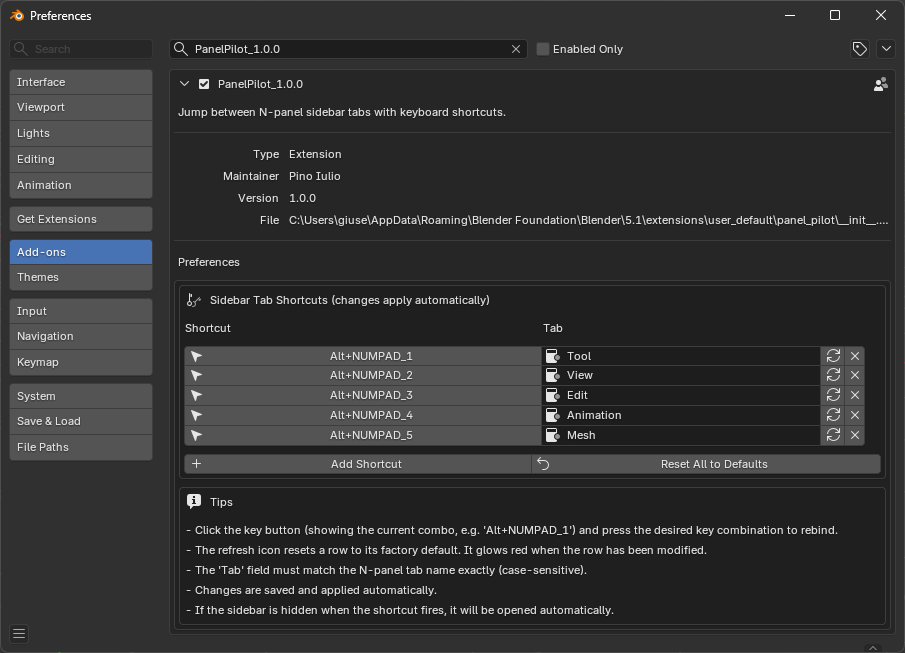
Shortcut list
Each row represents one keyboard shortcut bound to one N-panel tab.
Column |
Meaning |
|---|---|
Shortcut |
The key combination assigned to this row. Click to rebind via capture. |
Tab |
The exact name of the N-panel tab to activate (case-sensitive). |
Reset |
Restore this row to its default. Glows red when the row was modified. |
X |
Remove this row. |
Customized list and modified rows
Once you start renaming tabs, rebinding keys, or adding new shortcuts, the list grows and some rows light up in red on their reset icon. The red glow tells you which rows differ from their stored default.
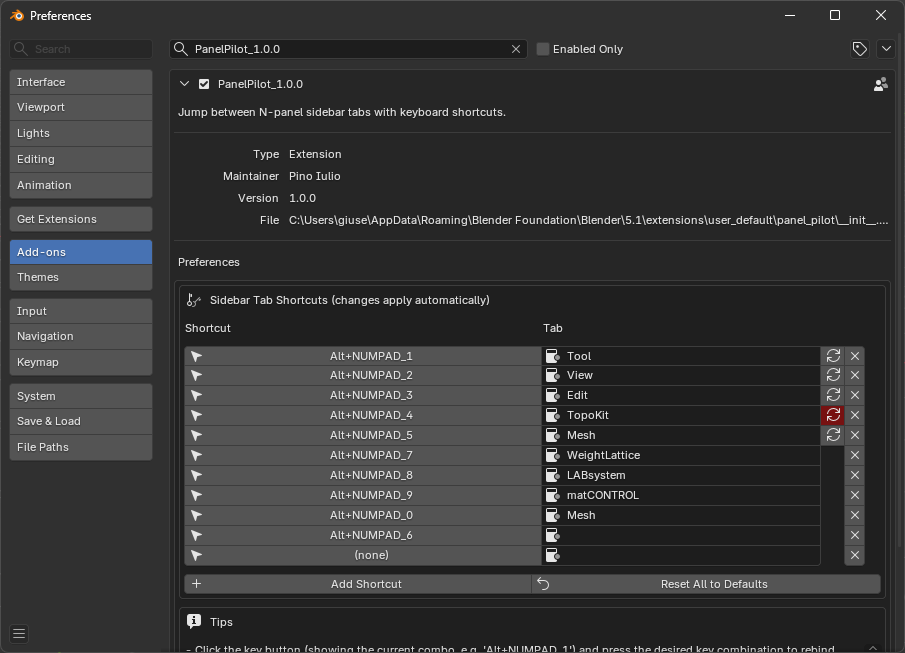
In the screenshot above the fourth row is highlighted: the tab name was changed from Animation to TopoKit, so the reset icon glows red. Clicking it would restore the row to Alt + NUMPAD_4 -> Animation. The rows below it are user-added shortcuts for the WeightLattice, LABsystem, matCONTROL, and Mesh tabs, plus an empty row waiting for the user to capture a key combination.
Rebinding a shortcut
Click the Shortcut button on a row.
The button label changes to Press key… and a hint appears in the area header.
Press the desired key combination (any key, optionally with Ctrl, Shift, or Alt).
The new combination is written into the row and applied immediately.
To cancel a capture, press ESC or click any mouse button. The row keeps its previous value.
Adding and removing rows
Add Shortcut: appends a new row. The first nine adds auto-assign the next free
Alt + NUMPAD_n; beyond that, a blank row is created and you choose the key via capture.X on a row: removes that row from the list.
Reset All to Defaults: clears the list and rebuilds the factory set.
Auto-apply
Every change to the list (key, modifiers, tab name, additions, removals) triggers a full rebuild of the addon keymap. There is no Apply button.
Tips shown inline
The preferences panel also shows a short reminder of the workflow:
Click the key button and press a key combination to rebind it.
The refresh icon resets a row to its default and turns red when modified.
The Tab field must match the N-panel tab name exactly (case-sensitive).
If the sidebar is hidden when the shortcut fires, it opens automatically.