Usage
PanelPilot has a single job: when a bound shortcut fires inside the 3D Viewport, switch the N-panel sidebar to the target tab and open the sidebar if it is currently hidden.
Trigger a shortcut
Move the mouse over a 3D Viewport.
Press one of the bound key combinations.
The sidebar (N-panel) opens if it was hidden, and the matching tab becomes active.
The operator does not steal focus, does not change selection, and does not change the active mode. It only mutates the sidebar state of the area under the cursor.
What happens if the tab does not exist
The tab names you set in the preferences must match exactly the categories registered by Blender or by other addons. Matching is case-sensitive: View is not the same as view.
If the bound tab name does not exist in the current Blender session, the operator reports a warning in the status bar and does nothing else. Open the preferences and fix the name - see Preferences.
Adding a new shortcut
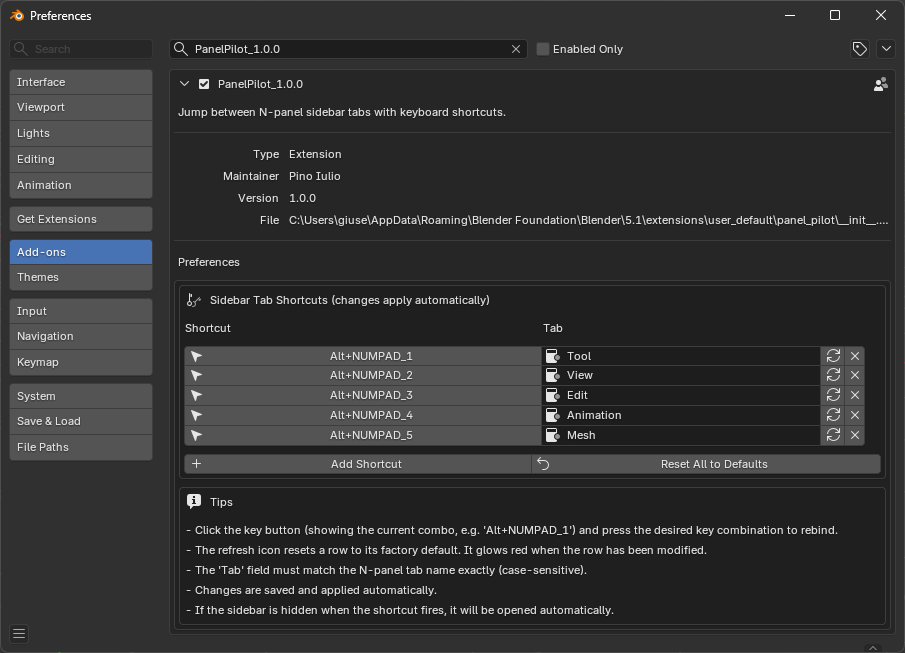
Open Edit > Preferences > Add-ons > PanelPilot.
Click Add Shortcut.
A new row is added with the next free
Alt + NUMPAD_ncombination.Click the key button on the new row and press the desired key combination.
Type the target tab name in the Tab field.
The change is saved and the keymap is rebuilt automatically.
Removing a shortcut
Click the X button on the right of any row. The change is immediate.
Resetting a row
Click the circular refresh icon on the right of any row to restore it to its default values. The icon turns red when the row has been modified, so you always know which rows you have customized.
To restore the entire default set, click Reset All to Defaults under the list.
Where it works
PanelPilot only registers shortcuts for the 3D Viewport keymap. The sidebar of other editors (Image Editor, Node Editor, Sequencer, etc.) is not affected by this version.